May 6, 2026
Learn how to personalize Texas Mutual’s latest info sheet
To help you share Texas Mutual information with your clients and personalize the message, we’ve added an updated co-brand feature to our newest marketing sheet. You can now add your logo to our Quick Facts sheet, in addition to typing in your name, agency and contact information.
Take a look at the new co-branding feature and learn how to personalize it.
Explore Quick Facts
We integrated the new co-branding feature on our newest marketing sheet, and plan to make it available for more frequently used sheets in the future.
Our Quick Facts about Texas Mutual (PDF) shares how we put workers’ comp to work for employers with key facts about our dividends, safety services, health care network, fraud fighting and more.
How to co-brand
You can co-brand our Quick Facts sheet in just a few steps. Please note you’ll need Adobe Acrobat Reader to use the co-branding feature on this PDF file.* We also recommend saving your logo somewhere easily accessible on your computer before you get started.
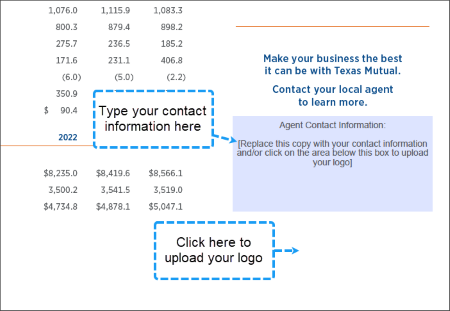
- Download and save the co-brand Quick Facts sheet to your computer.
- Open the file and scroll to the second page of the document to the blue box that says “Agent Contact Information.”
- Add your contact information: Highlight the instructional text and replace it with the information you want to display. You can add up to six lines of copy.
- Add your logo: Click in the white area below the Agent Contact Information box, then click Browse… and select the image file of your logo. The image upload feature will automatically resize your logo and show you a sample. Click OK to add the logo to the sheet.
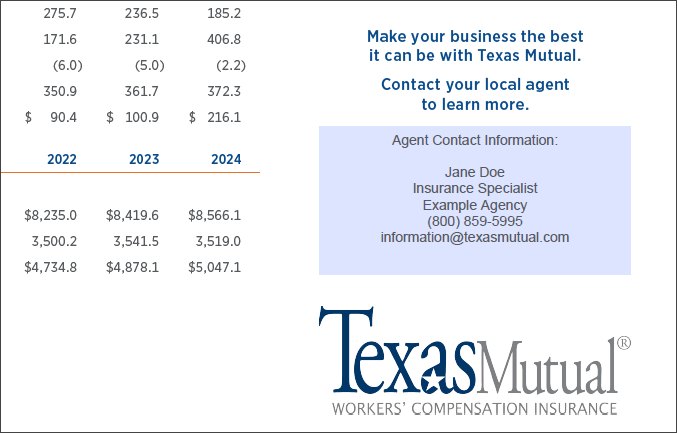
- Once finished, save the file and share with your clients by printing or emailing. Your file should look something like this, although the blue box will print as a white background:
*If you don’t have Adobe Acrobat Reader, you will still have the ability to type in your contact information within the PDF link. However, you will not have the ability to add your logo.
Where to access materials
You can access all our latest marketing materials at any time. The Marketing Materials page puts resources at your fingertips to help you show your clients why Texas Mutual is the strongest, safest protection against workplace injuries and their impact.
We know that you are often the face of Texas Mutual to our shared clients. We’re proud to partner with you to serve businesses across the state, and equip you with resources that help you do business. If you have any questions or comments about the new co-branding feature, please share with your territory manager or email marketing@texasmutual.com.